Use GPT, Claude & Gemini inside WorkBuddy:
the APIKIT setup guide
WorkBuddy supports custom models. Plug in your APIKIT API key and the same workspace can switch between GPT, Claude, Gemini, Grok and 50+ models on demand — about 5 minutes, no config files to edit.
00Background: what APIKIT adds to WorkBuddy
APIKIT is an AI API gateway: one account, one API key, OpenAI-compatible access to OpenAI (GPT), Anthropic (Claude), Google (Gemini), xAI (Grok) plus DeepSeek, Kimi, Qwen, GLM and more — 50+ models in total.
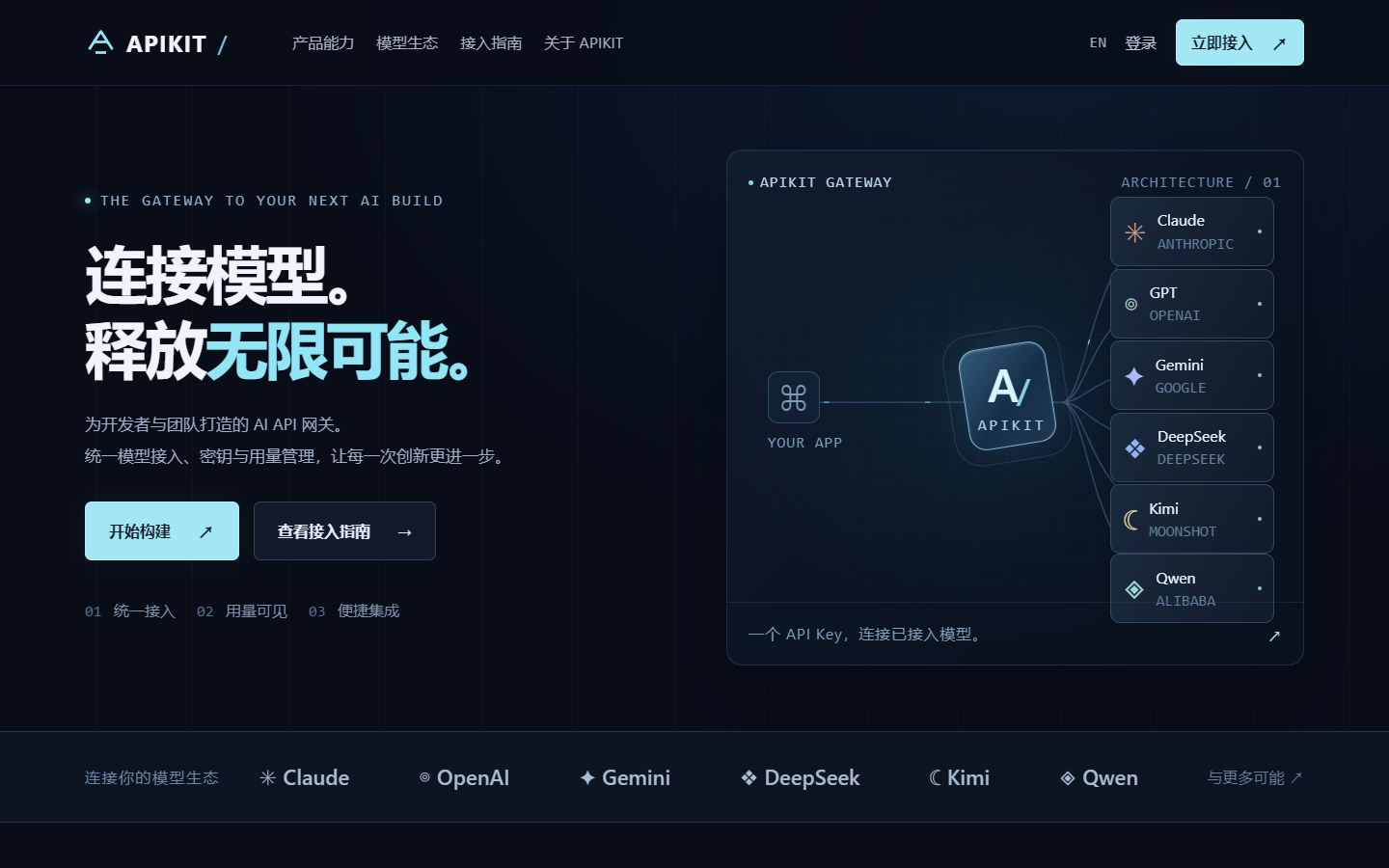
WorkBuddy, Tencent's AI workspace, officially supports custom models under Settings → Model — any OpenAI-compatible service works. Together you can switch models per task: Claude for long reports, GPT for everyday Q&A, Gemini for multimodal analysis.
01Step 1: Create your APIKIT account
Open www.apikit.cc/register — email or Google sign-in both work, no invitation code needed.
Open the sign-up page
Click "Get started" in the top-right corner or go to apikit.cc/register directly.
Sign in
After signing in you land in your personal console (dashboard).
02Step 2: Create an API key
In the console (apikit.cc/dashboard), open the "API Keys" page and create a new key.
Create the key
Click "Create key", give it a name (e.g. workbuddy), and the console generates an sk- key.
Copy it right away
The full key is shown only once at creation. Save it locally — you'll paste it into WorkBuddy next.
03Step 3: Pick models in the model plaza
Open the model plaza (/model-plaza) to see every model available to your account, with exact identifiers. Copy identifiers character by character — the name you type into WorkBuddy must match exactly.
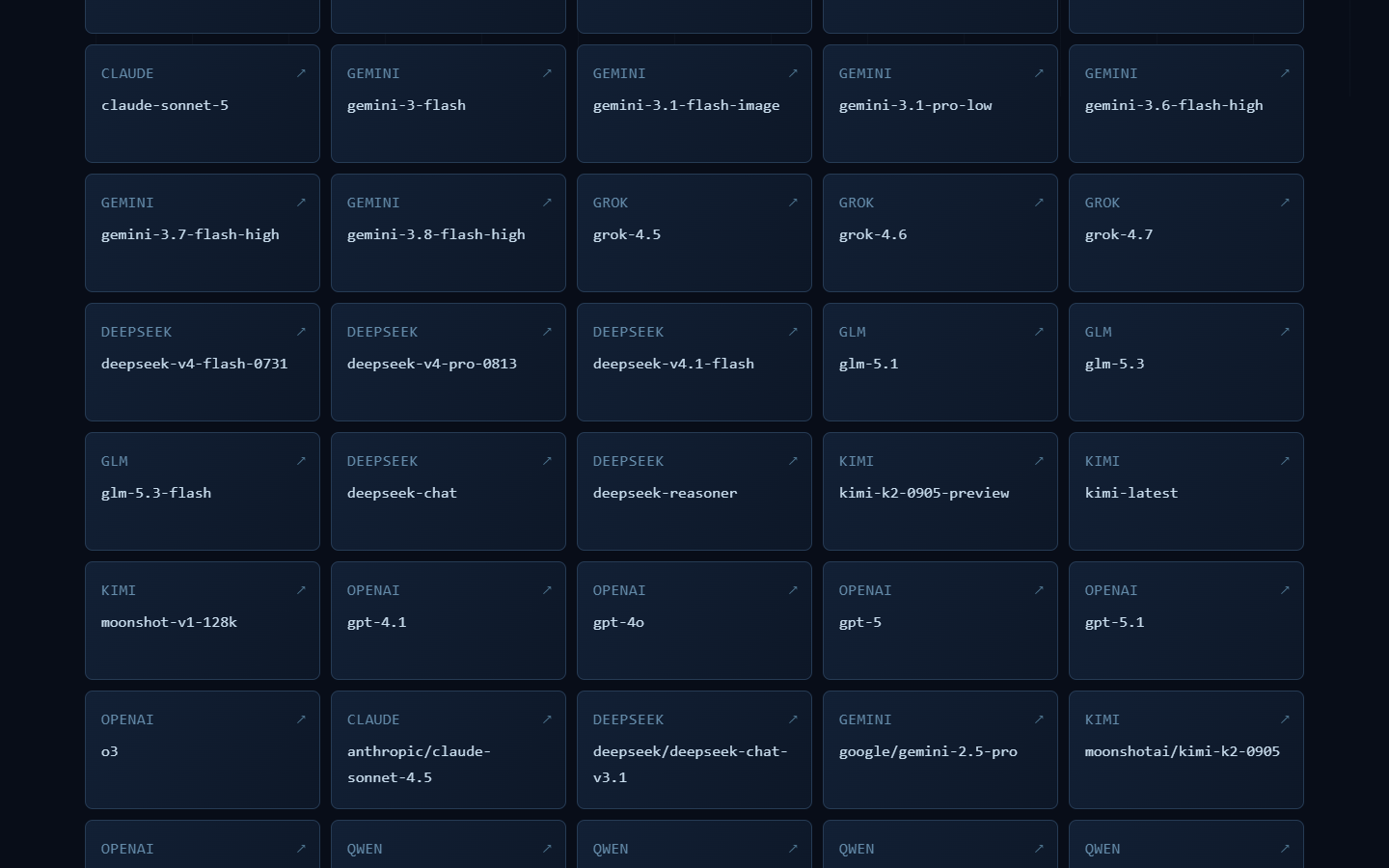
The catalog updates as upstreams evolve; always trust the identifier on the card over marketing names. You'll use it in step 4.
04Step 4: Add a custom model in WorkBuddy
The only WorkBuddy-side step. Open the WorkBuddy desktop app, click your account avatar (bottom-left) → Settings → Model.
Settings → Model → Add model
In the "Custom models" block click "+ Add model" to open the configuration dialog.
Fill in the four fields
| Field | Value | Notes |
|---|---|---|
| Provider | Custom | APIKIT is not in the built-in provider list |
| Base URL | https://www.apikit.cc/v1 | OpenAI-compatible endpoint; keep the trailing /v1 |
| API Key | the sk- key from step 2 | stored locally only, never uploaded |
| Model name | e.g. gpt-5.4 | must match the model plaza identifier exactly, prefixes included |
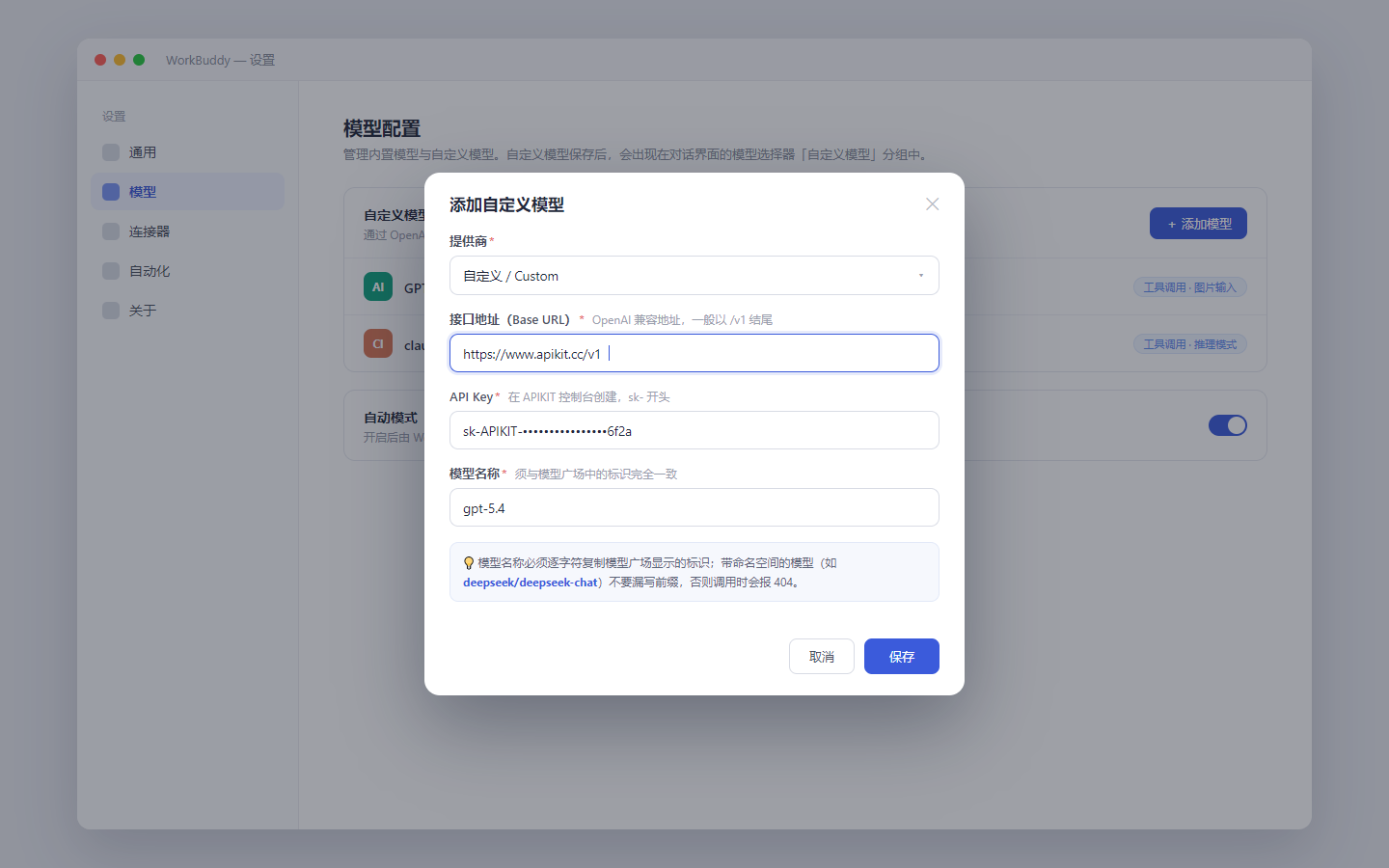
Save
Click "Save". Settings persist automatically — no restart needed.
05Step 5: Switch models and start chatting
Back in the WorkBuddy chat, open the model selector next to the input box and pick your new model under "Custom models". Messages now run on the GPT / Claude / Gemini you chose.
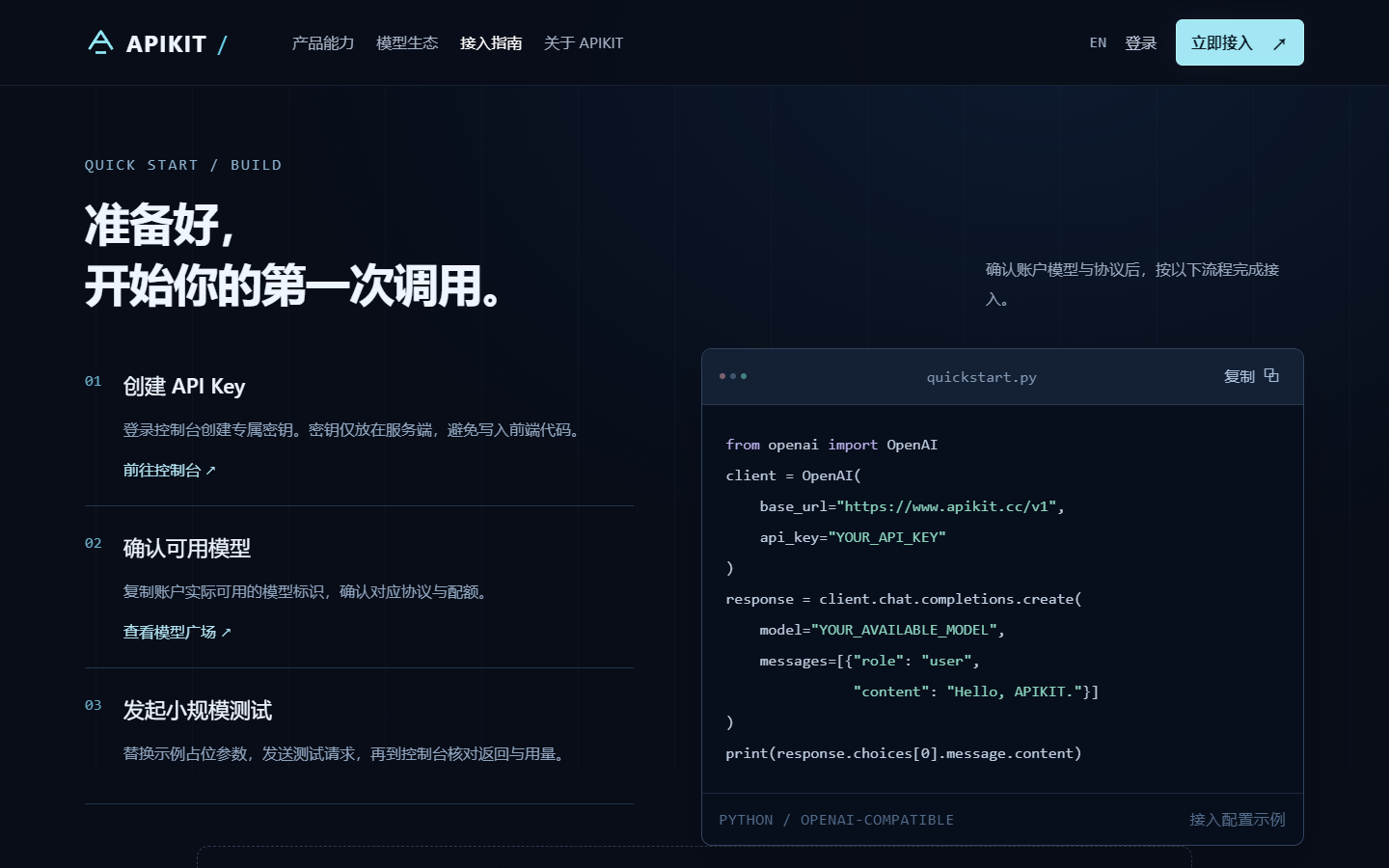
Send a test message
Ask "which model are you?" to confirm the routing matches your selection.
Check usage in the console
The console's usage/log page shows each request's model, token consumption and cost.
curl https://www.apikit.cc/v1/chat/completions -H "Authorization: Bearer sk-YOUR_KEY" -H "Content-Type: application/json" -d "{\"model\":\"gpt-5.4\",\"messages\":[{\"role\":\"user\",\"content\":\"hi\"}]}"06Which frontier model to choose
Subject to the live model plaza catalog, these are the flagship picks per family (identifiers as shown in the plaza):
| Model | Family | Strengths | WorkBuddy suggestion |
|---|---|---|---|
gpt-5.4 | OpenAI GPT | balanced chat, writing, instruction following | default daily driverTop pick |
gpt-5.4-mini | OpenAI GPT | fast, cost-effective | translation, summaries, batch jobs |
gpt-6-sol | OpenAI GPT | complex reasoning, long-form planningNew gen | solution design, multi-step tasks |
claude-opus-5 | Anthropic Claude | long-form writing, code, deep analysis | reports / whitepapers, large codebasesTop pick |
claude-sonnet-5 | Anthropic Claude | speed/quality balance | everyday writing and code edits |
gemini-3.8-flash-high | Google Gemini | multimodal, long context, fast | image understanding, very long documents |
grok-4.7 | xAI Grok | real-time topics, bold style | trend takes, brainstorming |
Running the same task across models is the fastest way to find your best workflow — exactly what "one key, every model" is for.
07Troubleshooting
| Symptom | Cause & fix |
|---|---|
| 404 / model not found | Model name typo. Copy the identifier from the model plaza character by character; keep namespaced prefixes (e.g. deepseek/deepseek-chat) |
| 401 / invalid key | Key copied incompletely or deleted. Create a new one in the console and paste the full sk- string |
| New model missing from selector | Make sure you clicked "Save" under Settings → Model; restart WorkBuddy if it still doesn't appear |
| Insufficient balance | Check your balance in the APIKIT console and top up; all custom models share one balance |
| What base URL to use | Always https://www.apikit.cc/v1. WorkBuddy uses the standard /chat/completions path — leave the "custom protocol" toggle off |
| Is the key safe? | WorkBuddy stores custom model settings locally (~/.workbuddy/models.json); keys are never uploaded. Don't share your key with anyone |
Five minutes to any frontier model in WorkBuddy
Register on APIKIT → create a key → paste it into WorkBuddy. Start building with GPT, Claude and Gemini.